This page is a resource for the School of Education’s Department Administrators for summer hiring. This process applies to employees with 9-month Academic Pay Basis appointments, including faculty, instructional academic staff, and graduate assistants. Employees hired on 12-month or annual appointments will follow the normal School of Education hiring practices and procedures.
General Guidelines for Summer Hiring
- Appointment Guidelines
- Each summer employment term comprises 13 weeks (6.5 biweekly pay periods). Summer session and summer service employment occur during this 13-week period.
- Types of Appointments
- Summer service appointments: utilized for research or other service/administrative activities
- Must be hired utilizing their current Academic Pay Basis Salary and FTE
- This allows us to have more accurate reporting for future summers
- Allows for compliance with grants reporting and credit payments from the university
- Summer session appointments: utilized for instruction only
- Must be hired utilizing Period Activity Pay
- Position will not have standard hours on the position, but hours must be added to the PAP itself
- The length of the appointment must coincide with the session(s) they are instructing/teaching
- Must be hired utilizing Period Activity Pay
- Summer service appointments: utilized for research or other service/administrative activities
-
- If faculty are doing a combination of the two, they must have two appointments: one for service and one for the session.
- Retroactive payments requested after the beginning of the fall term may not be possible and will be evaluated on a case-by-case basis.
Timelines
- Create/Edit Position Restrictions for the position must be submitted in Workday at least two weeks (10 business days) before the appointment start date.
- The Hire/Add Job Business Process, with the required attachments, must be submitted at least one week (five business days) prior to the appointment start date.
- FTE or Job Changes must be submitted at least one week (five business days) before the effective date of the change.
Reports
- Summer Session Summer Service Eligibility by Sup Org (UW)
- Summer Session Summer Service Eligibility by Worker (UW)
Resources
- Summer Appointments for 9-Month Employees
- Summer Session or Service - Add Additional Job
- Session Dates - Office of the Registrar
- Create Position
- Graduate Assistant Stipend Minimum Stipend Levels
- Period Activity Pay
- Graduate Assistant/Terminal Academic Staff Hiring Checklist
- Faculty/Ongoing Academic Staff Hiring Checklist
- Summer Hiring Training 2026
- Summer Service FTE/Salary Planning Tool
This is an accordion element with a series of buttons that open and close related content panels.
Summer Intake Form
| Task | Department |
| Run Summer Session Summer Service Eligibility by Sup Org (UW) or Summer Session Summer Service Eligibility by Worker (UW) | Department Administrator |
Complete Summer Intake Form
|
Department Administrator / Employee |
| Review, sign, and date form | Employee & Department Chair |
| If the request exceeds the 17.5 biweekly pay periods in aggregate over the last two summers through the upcoming/current summer, submit the form to hr@education.wisc.edu before submitting hire to request overage and exception from the Dean’s Office | Department Administrator |
Preparing Positions for Summer Employment
| Task | Responsible Party |
The following options are available for preparing positions for summer:
|
Department Administrator |
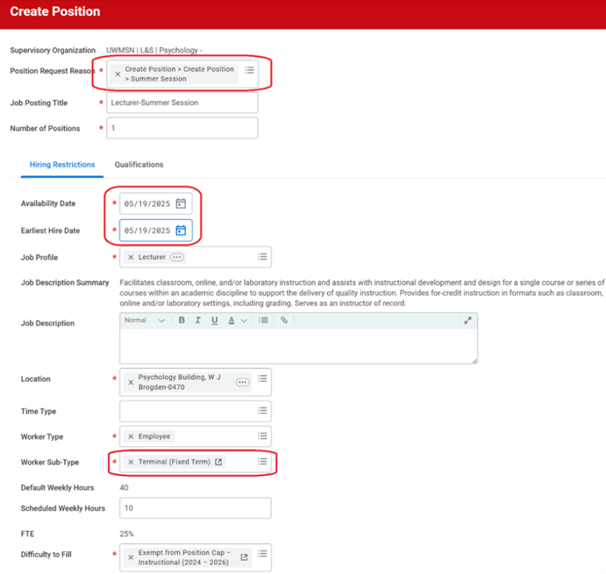
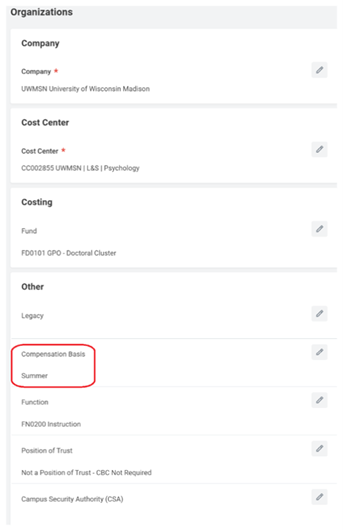
Unique Fields Needed for Summer Session and Service Position:
|
Department Administrator |
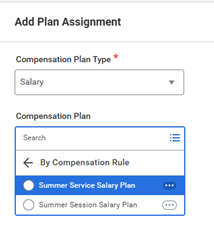
| Request Default Compensation for Position:
o Click on Add Plan Assignment o Compensation Plan Type: Salary o Compensation Plan: Summer Service Salary Plan or Summer Session Salary Plan > OK
Frequency: (select applicable option based on summer service or summer session appointment)
|
Department Administrator |
| Click submit, and the position will route for approvals |
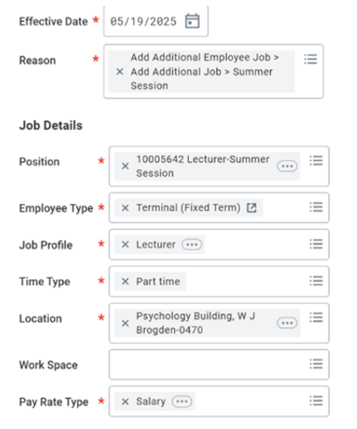
Hiring or Adding a Job to Current Employee
| Task | Responsible Party |
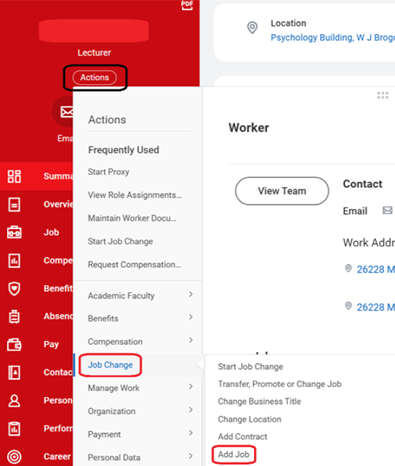
From the Workday homepage, search for and select the name of the employee in the search bar.
|
Department Administrator |
Select the Supervisory Organization for the new job.
Note: Some of the Job Details section may autofill based on the position. |
Department Administrator |
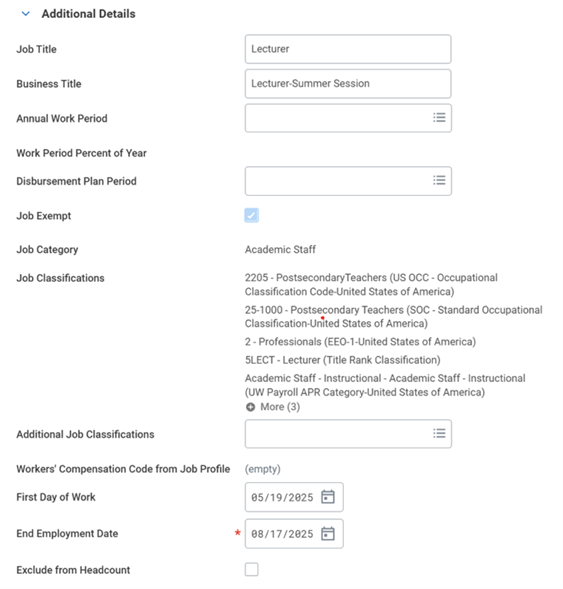
| Confirm/enter the fields in the Additional Details Section:
|
Department Administrator |
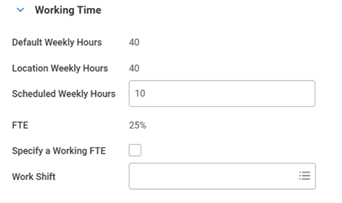
| Confirm or enter the fields in the Working Time section:
|
Department Administrator |
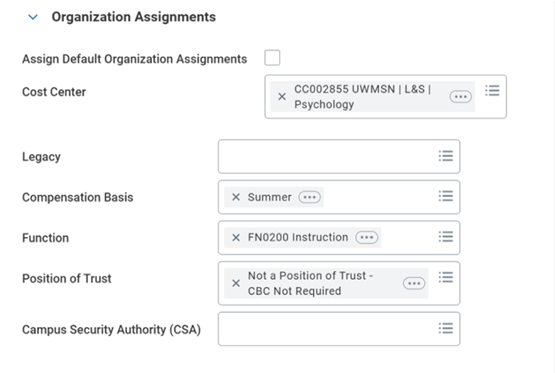
| Confirm/enter the fields in the Organization Assignments section:
|
Department Administrator |
|
Department Administrator |
| Click Submit NOTE: Click Save for Later if you would like to save your current progress before exiting the task |
Department Administrator |
Hiring Graduate Assistants
| Task | Responsible Party |
| Creating Position, Edit Position Restrictions, and hiring the job is the same as it is for faculty/instructional academic staff | Department Administrator |
Teaching assistants and lecturer student assistants must be paid via Period Activity Pay (see Period Activity Pay (Summer Session) below for additional information)
|
Department Administrator |
Project/program assistants and research assistants will be paid via FTE and hourly/salary rate, depending on FLSA status
|
Department Administrator |
Period Activity Pay (Summer Session)
| Task | Responsible Party |
Enter Period Activity Pay (for Summer Session only)
|
Department Administrator |
Summer MOUs and Offer Letter
| Task | Responsible Party |
Create Summer Service or Summer Session offer letter using template letters, which generates a task in Workday
|
Department Administrator |
Offer letters must be sent to all graduate assistants and anyone who did not hold a Spring 2026 appointment with the School of Education
|
Department Administrator |
Submitting FTE Changes
| Task | Responsible Party |
| At least one week before the effective date of the FTE change, submit the FTE Change via the Job Change Process | Department Administrator |
| Navigate to Worker Profile > Actions > Job Change > Start Job Change | Department Administrator |
Make sure the correct Worker and Job (Summer Service/Summer Session) are selected
|
Department Administrator |
| Select Effective Date and update Standard Hours | Department Administrator |
Add comment that explains FTE change
|
|
| Click Submit | Department Administrator |
A task will populate to Generate Document due to the job change
|
Department Administrator |